
Fixes
Stumble Guys Not Updating from Google Play Store
Key takeaways
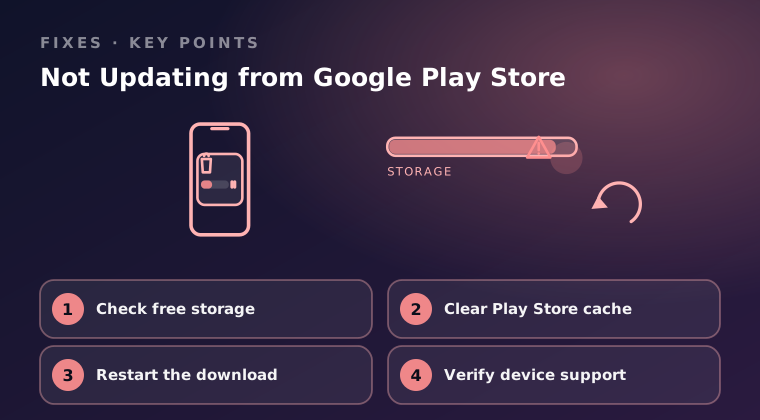
- A stuck download is almost always storage or Play Store cache.
- Check that the device still meets the newest minimum requirement.
- Update only through Google Play or the App Store — never a file from a link.
When Stumble Guys will not update from Google Play Store, the cause is nearly always free storage, a stuck Play Store cache, a stalled download, or a device that no longer meets the requirements. Work through those four in order and you will rarely need anything more drastic.
One thing to settle up front: Google Play and the App Store are the only update routes we recommend. Every fix below stays inside those official channels.
Check free storage
An update needs room for the download itself plus room to unpack it, so a phone that is nearly full will fail partway through or refuse to start. This is the fastest thing to verify, so always do it first.
- On Android, open Settings > Storage and read the available space figure.
- On iOS, open Settings > General > iPhone Storage and wait for the breakdown to finish loading.
- Free up at least 2 GB more than the update size — delete old videos, offline downloads, and apps you no longer use.
- Empty the trash or Recently Deleted album, since deleted media keeps occupying space until you do.
- Open the Stumble Guys store listing and tap Update again.
Clear Play Store cache
The Play Store app keeps its own cache of download metadata, and when that data goes stale it can leave an update stuck at "Pending" or failing instantly. Clearing it costs nothing and does not affect your installed games.
- Open Settings > Apps > Google Play Store > Storage and tap Clear cache.
- Tap Clear data as well if clearing the cache alone did not help; you may need to sign back into the Play Store afterwards.
- Repeat the process for Google Play services and Download Manager if downloads keep failing immediately.
- Restart the device, then reopen the Play Store and check the Stumble Guys listing.
On iOS there is no Play Store cache to clear. If an App Store update stalls, delete the app and reinstall it from the App Store, or open Settings > General > iPhone Storage > Stumble Guys > Offload App and install it again from the same listing.
Restart the download
A download that has been queued for hours is usually waiting on a network condition rather than on Google. Resetting the queue forces the Play Store to request a fresh connection.
- Open the Play Store, tap your profile icon, and go to Manage apps & devices to see whether the update is queued or paused.
- Toggle Airplane mode on for ten seconds, then off, and confirm you have a working connection.
- Switch between Wi-Fi and mobile data to rule out a network that is blocking the download.
- Cancel the stuck update from the Stumble Guys listing and tap Update once more.
- Disable any VPN or ad blocker temporarily, then retry — both are frequent causes of stalled downloads.
Verify device support
If the update never appears at all, your device may no longer be supported. Newer builds raise the minimum Android or iOS version and sometimes the hardware baseline, and the store listing will simply hide the update on incompatible hardware.
- Open the Stumble Guys store listing and read the requirements section near the bottom.
- Compare that with your OS version at Settings > About phone on Android, or Settings > General > About on iOS.
- Install any pending system update, since a newer OS version often restores compatibility.
- Confirm the listing is for your region and account; a mismatched store account can hide updates.
- If your device genuinely falls below the minimum, there is no supported way to run the newer build — upgrading the phone is the only real answer.
Final word
Cheapest first: free up storage, clear the Play Store cache, restart the download, then confirm your device is still supported. Google Play and the App Store are the only update routes we recommend, because install files from third-party sites and file hosts put both your device and your account at risk. If the update still will not install on a supported device with plenty of space, contact official support through Settings > Help & Support inside the game or via the support page on the official site, and include your device model, OS version, and the exact message the store shows.
Keep reading
Fix Stumble Guys Crashing on Android & iOS
Stumble Guys keeps closing on your phone? Work through these Android and iOS fixes, from storage and cache checks to graphics settings.
Stumble Guys Login Failed – Troubleshooting Guide
Stumble Guys login failed errors usually come from accounts, network or cached data. Here is the troubleshooting order that solves them.

How to Fix High Lag in Stumble Guys Mobile
High ping and stutter ruin race rounds. Follow these steps to cut lag in Stumble Guys on mobile: network, background apps and in-game settings.