FAQ
Does Stumble Guys support controller gameplay?
Key takeaways
- Mobile supports paired Bluetooth gamepads on most current devices.
- Touch controls remain the default for matchmaking fairness on phones.
- If a gamepad is not detected, re-pair it before launching the game.
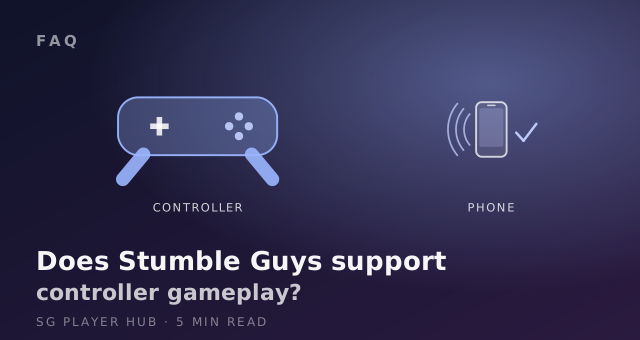
Stumble Guys has limited and uneven controller support. Bluetooth gamepads generally work on mobile once paired before launch, while support on desktop and console builds varies by version and platform. The reliable way to confirm it is to pair the gamepad, start the game, and watch whether the menus respond to stick and button input.
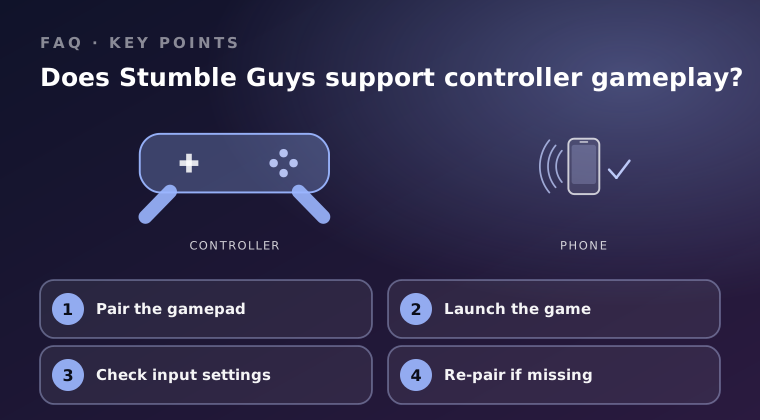
Pair the gamepad
Pair at the operating system level first, before the game is running. Stumble Guys does not have its own pairing screen, so if the device does not already see the gamepad, the game will not see it either.
- On mobile, open system Bluetooth settings, put the gamepad into pairing state, and connect it there.
- On desktop, connect by cable or through the system's Bluetooth device list.
- Confirm the gamepad works outside the game, for example in a launcher menu, before blaming the game.
- Charge the gamepad first. Low battery causes dropped input that looks like a support problem.
Launch the game
Order matters. Start Stumble Guys only after the gamepad is connected, because many builds detect input at launch and will not pick up a device added later.
- Close the game completely, connect the gamepad, then start a fresh session.
- Test in the menus: move the stick and press a button to see whether the selection moves.
- If the touch or mouse controls still respond, that is normal; they usually stay active alongside a gamepad.
- If nothing responds in the menus, assume this build does not support your gamepad rather than assuming a bug.
Check input settings
Where controller support exists, it is usually automatic, with no option to enable. That makes the in-game settings screen the place to verify what is actually recognised.
- Open the settings menu and look for any input or control section.
- If no gamepad option appears, the running build has no gamepad support on that platform.
- Button layout is generally fixed, so a gamepad with an unusual mapping may work only partially.
- Some builds recognise a gamepad for movement but not for menus, or the reverse.
Be realistic about platforms: mobile with a Bluetooth gamepad is the situation where support is most commonly reported working. Desktop and console behaviour differs by build and platform, and support can be partial or absent. Check the official store page and the in-game settings for your version instead of relying on second-hand claims.
Re-pair if missing
If the gamepad is ignored, work through the simple causes before concluding that it is unsupported.
- Remove the gamepad from the device's Bluetooth list and pair it again from scratch.
- Restart the device with the gamepad already connected.
- Force-close Stumble Guys and relaunch it after the gamepad is active.
- Try a different gamepad to separate a device problem from a game problem.
- Update the game and the system software, then repeat the launch test.
Final word
Pair the gamepad at the system level, launch Stumble Guys afterwards, and check whether menus and movement respond. Treat desktop and console support as uncertain and version-dependent, and if a gamepad is never detected after a clean re-pair, plan on touch, mouse, or keyboard input instead.
Keep reading
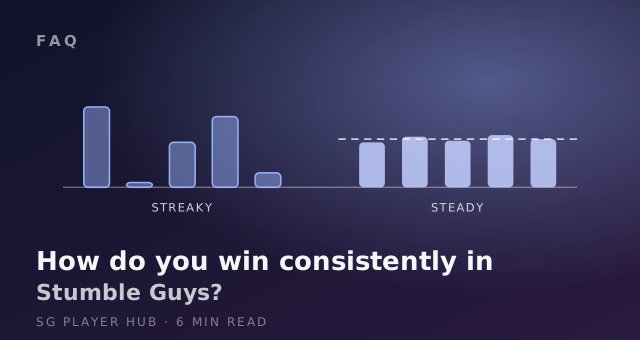
How do you win consistently in Stumble Guys?
Winning consistently in Stumble Guys is about round selection and recovery, not raw speed. Here is what separates steady winners from lucky ones.

What is the best map for beginners in Stumble Guys?
Some Stumble Guys maps are far kinder to new players. Here are the friendliest maps to learn movement on and the ones worth avoiding at first.
How to get free skins in Stumble Guys without paying?
You can earn Stumble Guys skins without spending money. Events, season tracks and challenges all reward cosmetics — here is where to start.